Saturday, 25 February 2012
Tuesday, 7 February 2012
Remove the Aberration
Chromatic aberration, also commonly referred to as purple fringing, happens a lot. It’s a myth that expensive lenses eliminate the problem although they certainly help reduce it.
It normally occurs in areas of high contrast where you have a bright colour right next to a darker one.
It’s also not always purple: it can be blue, cyan, purple, yellow and it is not always the same colour in one picture.
It is easy to fix and its presence in a photograph can really detract from the image: drawing the eye to where it shouldn't be because of the unnatural colours. Stock photography sites such as iStockPhoto will reject any image with a hint of chromatic aberration so knowing the right techniques and software to cleanly repair the photograph is crucial.
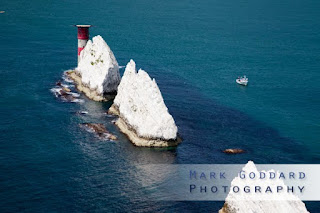
This picture of The Needles off the coast of the Isle of Wight demonstrates it really well.

If we zoom in to view the picture at full size, you can see the purple fringing on the left and the blue along the right edge:
There are a myriad of ways to get rid of this through post-processing. I’m a huge fan of non-destructive editing: always preserve the original picture; you never know when you might need it. I have also excluded methods which only deal with chromatic aberration of one colour within a picture or which can impact the rest of the colours in the picture.
Below I’ve detailed the two simplest ways to deal with it that maintain the quality of everything else.
The first method uses Lightroom:
This is what I end up with:

To make more selective edits, you can use Photoshop:
For this picture, I painted blue on the outside and tidied up some of the rocks with a white overlay:
It normally occurs in areas of high contrast where you have a bright colour right next to a darker one.
It’s also not always purple: it can be blue, cyan, purple, yellow and it is not always the same colour in one picture.
It is easy to fix and its presence in a photograph can really detract from the image: drawing the eye to where it shouldn't be because of the unnatural colours. Stock photography sites such as iStockPhoto will reject any image with a hint of chromatic aberration so knowing the right techniques and software to cleanly repair the photograph is crucial.
This picture of The Needles off the coast of the Isle of Wight demonstrates it really well.

If we zoom in to view the picture at full size, you can see the purple fringing on the left and the blue along the right edge:

There are a myriad of ways to get rid of this through post-processing. I’m a huge fan of non-destructive editing: always preserve the original picture; you never know when you might need it. I have also excluded methods which only deal with chromatic aberration of one colour within a picture or which can impact the rest of the colours in the picture.
Below I’ve detailed the two simplest ways to deal with it that maintain the quality of everything else.
The first method uses Lightroom:
- Go to the Develop section
- Zoom into your picture to see the chromatic aberration. If possible, try and get onto the same screen an example of all colours of chromatic aberration
- Scroll the right hand panel down to the “Lens Corrections” section. You’ll see two “Chromatic Aberration” sliders.
- To get rid of purple fringing, I moved the Red/Cyan slider to the right. Don’t move it too far or you’ll make it worse
- To get rid of the blue fringing I moved the Blue/Yellow slider slightly right
- If you have other colours, experiment with moving the sliders left or right.
This is what I end up with:

To make more selective edits, you can use Photoshop:
- Add a new layer
- Set the layer mode to ‘Color’. This will enable you to paint over the chromatic aberration with a brush but only change the colour: the saturation and brightness will stay the same
- Select a colour which you want to paint over the chromatic aberration. This should be a colour to the left or right of the fringing itself, or go for white. (Press i to get the colour picker and then click on part of the picture which contains your chosen colour).
- Select the Brush Tool
- Reduce the opacity and flow to 50% each
- Make sure you feather the brush and the brush size is slightly smaller than the width of the chromatic aberration
- Gently paint over the chromatic aberration. You will see it turn to your chosen colour. You may need a couple of strokes
- As everything is being done on a new layer, don’t worry about making mistakes. Just use the eraser to clean up
For this picture, I painted blue on the outside and tidied up some of the rocks with a white overlay:
Which method should you use? Lightroom is definitely quicker but you may find it doesn't get rid of everything in which case I'll clear up the worst of it using Lightroom and then Photoshop out the rest of it.
Friday, 18 November 2011
La Vallée des Singes
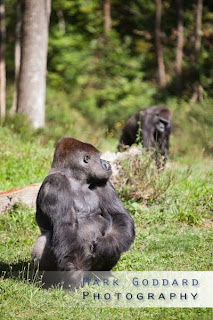
A definite monkey theme to this blog post! These are some of my favourite pictures from a recent trip to France and La Vallée des Singes: the Valley of the Monkeys. An amazing place where the monkeys are allowed to roam freely with some wonderful photo opportunities.


I love these Silverback Gorillas. They are amazing creatures: huge yet graceful and they walk through the forest with a definite authority.


Tuesday, 8 November 2011
Les Giants de Ciel
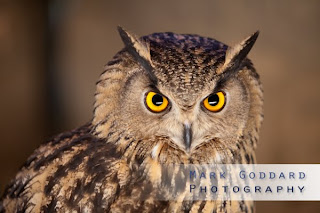
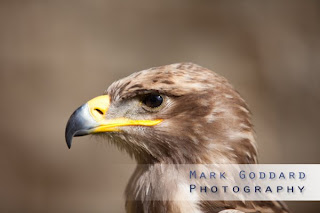
A couple of the best pictures from a recent trip to Les Giants de Ciel (Giants of the Sky). Admittedly, these are just birds standing still so technique doesn't really come into play. Nonetheless, being able to get so close to the birds and have an uncluttered background leads to some really striking poses. Check out my earlier post on removing reflections from the eyes.

Wednesday, 2 November 2011
In the eye of the beholder
I recently went to Les Giants de Ciel in Chauvigny, France. It was by far the best ever 'falconry' display I've ever seen with a fantastic variety of birds amidst a spectacular setting.
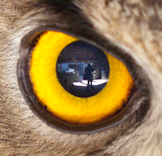
As is often the case, there were several birds dotted around the grounds and you could wander around and see the birds up close. I was really pleased with a picture of an eagle owl, until on closer inspection I could see myself reflected in its eye.
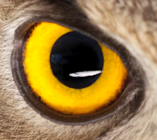
I tried cloning out the reflection of me using Photoshop and whilst it worked to a degree, there was still a lot of clutter in the background, detracting from the picture. I found the best solution was to burn the pupil area. This darkens the pupil, obscuring the unwanted detail, but doesn't make it an unnatural pure black.You can do this in a non-destructive manner:
- Create a blank layer on top of your main picture
- Set the layer to be "color burn"
- Set your colour to be black
- Choose a brush with a low opacity to gradually paint over the pupil to achieve the desired effect
Make sure you keep the catch-light.
My burn layer looks like this:

Now, if you want to tidy up your burning, you can reduce the impact by changing the layer opacity, or refine it using the eraser or select a white brush to vary the effect.
The final result (which I think works really well, but I am biased!):

Labels:
birds,
burn,
eye,
falconry,
les giants de ciel,
owl,
photoshop,
pupil,
reflection,
tips
Friday, 28 October 2011
Free Stock Photos
If you are looking for some amazing high quality photographs (even if they are not mine!), try
www.istockphoto.com. If you use the link below you will get a bunch of free credits.
Thursday, 20 October 2011
Newborn baby lightbox
After having a some very popular photos in my first newborn baby lightbox I thought it was long overdue that I setup a new lightbox of the newest addition to my family on istockphoto.
I love this expression on her face at bath time:

...and this one makes me smile as she can be a drama queen at times!

One can never have enough of cute hand and feet shots as they grow up so quickly:


But right now, she's fast asleep and I've got a rare chance to update some photos!
I love this expression on her face at bath time:
...and this one makes me smile as she can be a drama queen at times!
One can never have enough of cute hand and feet shots as they grow up so quickly:
But right now, she's fast asleep and I've got a rare chance to update some photos!
Creating Contact Sheets in Lightroom to Email
I took a few hundred photos last weekend for some friends with their new addition to their family and wanted to send them via email a contact sheet of all the photos so they could take a look before I spent some time editing them.
Lightroom 3 offers a really effective solution for this although it wasn't obvious at first that I could create a soft copy of a contact sheet instead of printing it out that was small enough to email.
The easy way to do it is
1) Select the photos you want to include on your contact sheet
2) Select Print from the menu
3) In the template browser (left hand side), select the contact sheet you want. My preference in this case was the 4 x 5 contact sheet: a good compromise between size of each picture and number of shots per page
4) On the right hand side, scroll all the to the bottom to the Print Job section
5) Where it says "Print to: Printer", click and select "JPEG File"
6) Click Print!
It will create one file per page.
An alternative would be to follow the above steps but write to a PDF file and send it. The only problem I've found with this is the size of the PDF file which is often too large to email.
Lightroom 3 offers a really effective solution for this although it wasn't obvious at first that I could create a soft copy of a contact sheet instead of printing it out that was small enough to email.
The easy way to do it is
1) Select the photos you want to include on your contact sheet
2) Select Print from the menu
3) In the template browser (left hand side), select the contact sheet you want. My preference in this case was the 4 x 5 contact sheet: a good compromise between size of each picture and number of shots per page
4) On the right hand side, scroll all the to the bottom to the Print Job section
5) Where it says "Print to: Printer", click and select "JPEG File"
6) Click Print!
It will create one file per page.
An alternative would be to follow the above steps but write to a PDF file and send it. The only problem I've found with this is the size of the PDF file which is often too large to email.
Wednesday, 17 August 2011
Diamond
Today, I clocked up 25,000 downloads on iStockphoto, putting me into the 'diamond' category. It's hard to track which exact photo gets the credit but I think it's this take on online gambling:
Royal Flush hanging on a clothes line.
Tuesday, 16 August 2011
The Needles
It has been a while since my last update but raising children is taking more time than expected and I've got a whole host of photos just sitting waiting to be edited but no time.
But, a recent trip to the Isle of Wight gave me a great opportunity to take a few good shots and I love this one of The Needles glistening in the sun.
Thursday, 13 January 2011
The New Toy
Saturday, 25 September 2010
Cambodia Picture on Travel Website
Found this using TinEye (great search engine for any photographers out there wanting to trace their own work or find any usage of a picture) tonight. The picture on the left is one of mine from a fantastic trip to Angkor Wat, Cambodia a few years back.

This is the original:

This is the original:
Labels:
cambodia,
tearsheet,
travel,
travel photography
Home Studio: Hands!
A couple more examples from my home studio before it gets dismantled and turned back into a bedroom.
I wanted to try and get all the family's hands in one shot without looking awkward and cumbersome. The first attempt was just with three of us:

And the second one required somewhat more coordination and much bribery of chocolate:
I wanted to try and get all the family's hands in one shot without looking awkward and cumbersome. The first attempt was just with three of us:

And the second one required somewhat more coordination and much bribery of chocolate:
Home Studio: First Pictures
It is amazing what you can do with a bit of research (and I'd like to claim a bit of ingenuity but it took me so long how to figure it all out when really it's so simple I'm not sure I can make that claim!).
I have been meaning to try and sort out some decent lighting and make a studio, on a budget, with not much room and not much time...sounds like a recipe for a disaster. I haven't quite got the lighting how I want it yet but I'm really pleased with some of the photographs.
List of equipment I used:
I'll post some more detailed instructions later on how I put it together and where I got the kit. Strobist's Lighting 101, which so many people recommend and link to, is brilliant, but it still took me a while to adapt this for a Canon camera.
Anyway, here are my first results:
This shot showing the contrast of a grown-up's hands around a newborn baby's foot doesn't have the hard isolated white background but I'm pleased with the smooth lighting and the lack of harsh shadows.

These two were some of the first I did with the subject cleanly isolated against the white background and deliberately going for a high key effect. A bit of a classic posey shot but it was fun trying it.

I have been meaning to try and sort out some decent lighting and make a studio, on a budget, with not much room and not much time...sounds like a recipe for a disaster. I haven't quite got the lighting how I want it yet but I'm really pleased with some of the photographs.
List of equipment I used:
- 1 very big sheet of white paper
- 1 camera
- 1 decent flash
- 1 flash dug out of my Grandad's cupboard and about 30 years old
- 3 pocket wizards (this bit blew my budget but it's well worth it!)
I'll post some more detailed instructions later on how I put it together and where I got the kit. Strobist's Lighting 101, which so many people recommend and link to, is brilliant, but it still took me a while to adapt this for a Canon camera.
Anyway, here are my first results:
This shot showing the contrast of a grown-up's hands around a newborn baby's foot doesn't have the hard isolated white background but I'm pleased with the smooth lighting and the lack of harsh shadows.

These two were some of the first I did with the subject cleanly isolated against the white background and deliberately going for a high key effect. A bit of a classic posey shot but it was fun trying it.

Tuesday, 31 August 2010
Welcome, Charlotte
Saturday, 14 August 2010
snapfish mugs
Sunday, 31 January 2010
NHS Pregnancy Book 2009
For some unknown reason, Kate and Reuben seem to be outselling me significantly when it comes to photos we're in! A friend from our NCT class found this one and emailed to let us know that Kate and Reuben are in the latest NHS Pregnancy Book which goes out to all pregnant mums. It's in the Sleeping section, page 140 for any of you expecting families out there or is online.
This is the picture:
Dinner Jacket Model
Not just another photograph of mine in use (for Jakob Custom Clothiers), but check out the model (the one on the left), and yes, I know that's the one you can't see the face...
Wednesday, 6 January 2010
Night Time Photography
Saturday, 5 December 2009
Reuben on Quality Childcare
This is probably one of the most exciting finds of my photographs being used in the big outside world and one of the best stories too:
Kate has been working hard for several weeks on a report on costs for early childhood care and education. Just before it was launched, she got sent through a proof of the front cover from the independent design agency and check out who was on the front cover!
Subscribe to:
Posts (Atom)